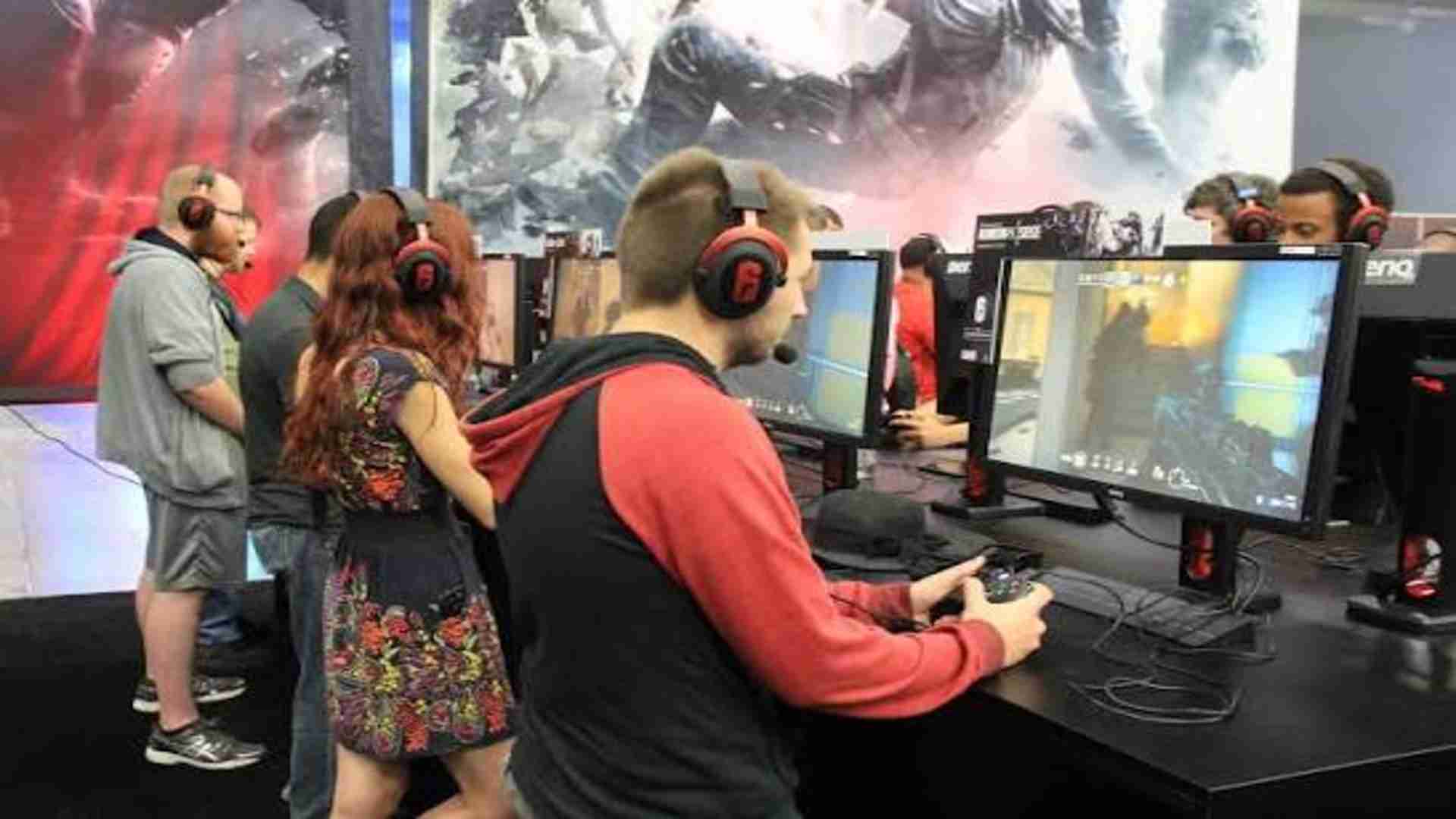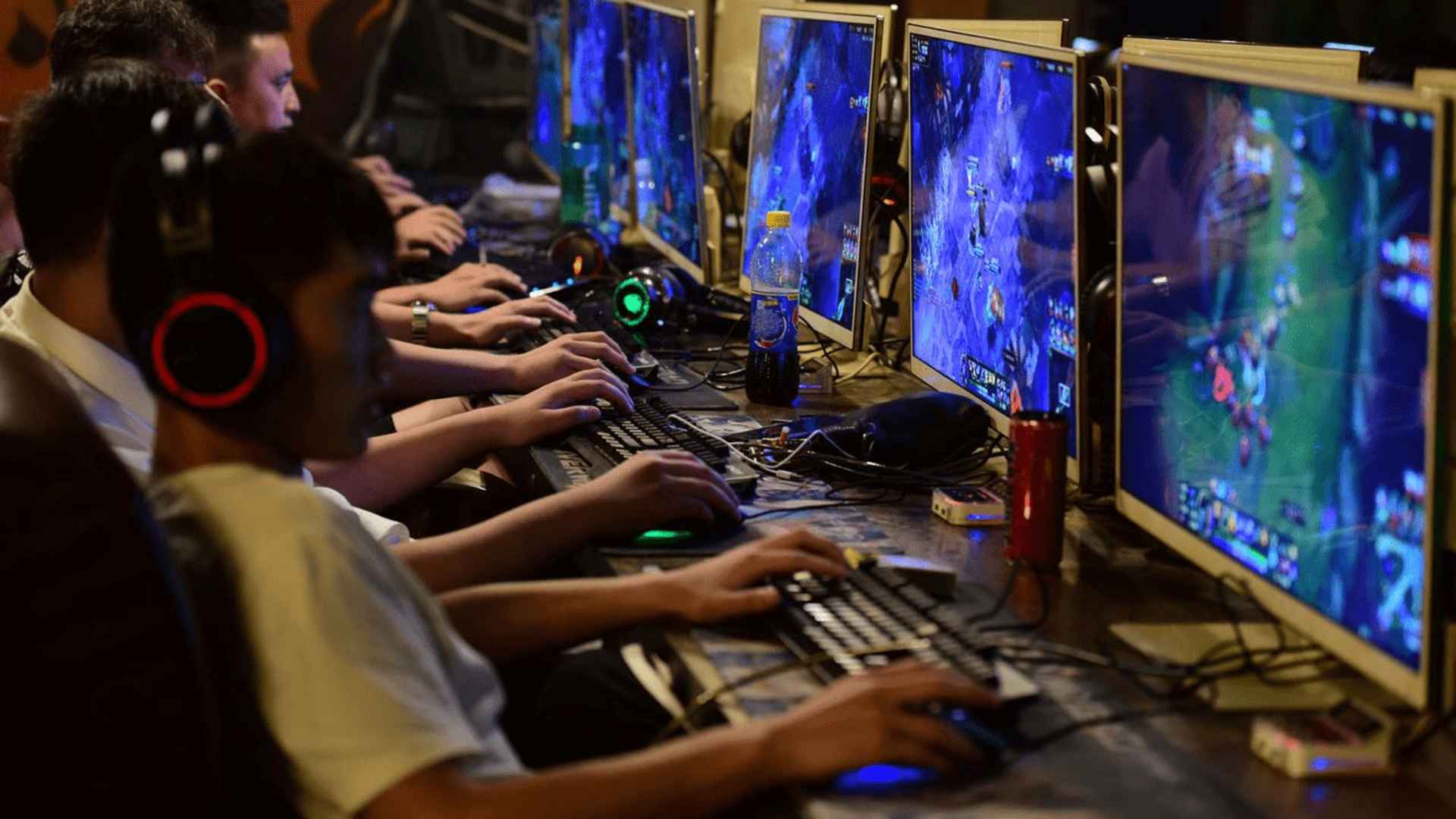
While the PlayStation 5 offers impressive native performance and controller feedback, many gamers prefer the precision of traditional PC controls. Using a specialized mouse and keyboard adapter for the PS5 allows players to bridge this gap across various titles. Understanding how these translation devices function and setup requirements ensures a smooth console gaming experience.
Understanding How PS5 Adapters Work
A mouse and keyboard adapter acts as an intermediary device between your peripherals and the console. Instead of sending standard computer commands, the converter translates mouse movements and keypresses into DualSense controller signals in real time. This allows players to use precision controls even in games that do not feature native peripheral support.
Because the console perceives the adapter as an official gamepad, players can customize button layouts and sensitivity curve settings. Hardware solutions vary in features, ranging from simple plug-and-play models to advanced options with app-based customization. Selecting a reliable unit ensures lower latency and better response times during intense gameplay sessions.
Hardware Compatibility and Console Restrictions
Not every adapter or gaming peripheral works seamlessly with the PlayStation 5 system architecture. Native PS5 titles require specific security authentication protocols that older generation adapters cannot bypass on their own. Consequently, some devices require connecting an official controller or utilizing Remote Play protocols to function properly.
Most standard USB and wireless keyboards work well once connected through a compatible adapter setup. However, peripherals that rely heavily on proprietary PC software or complex macro drivers may experience restricted features. Checking peripheral compatibility before purchasing hardware prevents unexpected technical issues.
Step-by-Step Installation Guide
Setting up your adapter begins by connecting the hardware device directly to one of the PS5 USB ports. Next, plug your wired or wireless keyboard and mouse into the designated input slots on the converter unit. In most configurations, a DualSense controller must also be attached via cable to handle console authentication.
Once everything is connected, turn on the console and launch your chosen game to test input responsiveness. You can fine-tune pointer speed, key bindings, and aim sensitivity through the adapter's companion mobile application or onboard menu. Proper calibration helps eliminate jitter and provides a fluid control feel similar to desktop gaming.
In-Game Performance and Recommendations
Using an adapter provides significant aim adjustments and ergonomic benefits for players transitioning from PC setups. Fast-paced first-person shooters and tactical strategy games benefit greatly from mouse precision over analog stick aiming. However, players should remain aware of individual game policies regarding controller translation hardware in competitive modes.
For the best overall stability, keep your adapter firmware updated to match current PS5 system software requirements. Combining quality peripherals with a well-configured adapter creates a comfortable and precise gaming environment. Taking time to properly configure your settings guarantees optimal performance across all your favorite games.